Configure Firebase Push Notification
Push notifications is one of the most essential implementations for any mobile app project. It is simple but simple things can sometimes turn out to be a huge issue. We use different push notification services for our projects. However, as part of our backendless webhook implementation, we used Firebase. Therefore, we wanted to explain how to configure Firebase push notification to your project.
Handling certificates is sometimes too confusing. Thanks to M. Kerem Keskin, we did not face any issue in this part. He managed the certificates for us and helped us for an easy learning process.
Configure APNs Certificates
- If you have not yet created a Firebase project for your app, firstly, create a project, download GoogleService-Info.plist, and place it in your project as guided over Firebase.
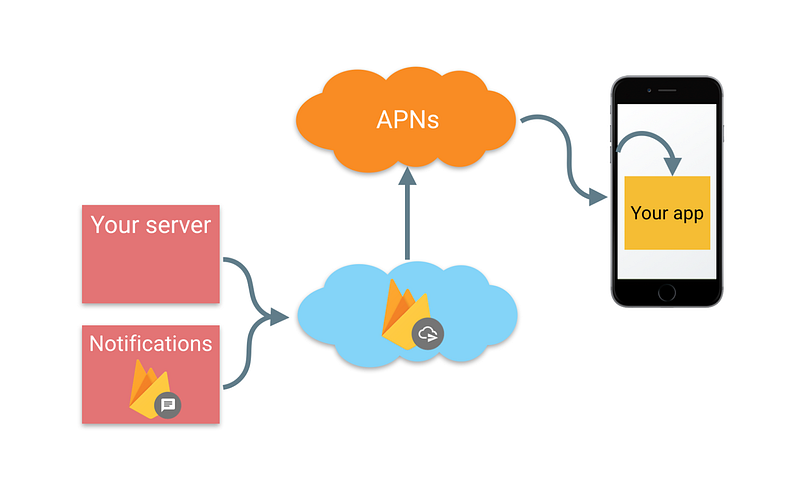
Step 1: Create a certificate signing request
- Open “Keychain Access” → Certificate Assistant → Request a Certificate From a Certificate Authority → Enter email address → Check “Saved to disk” → Continue → Specify a location & click “Save”
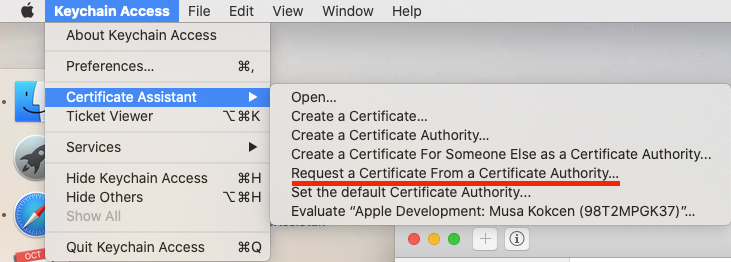
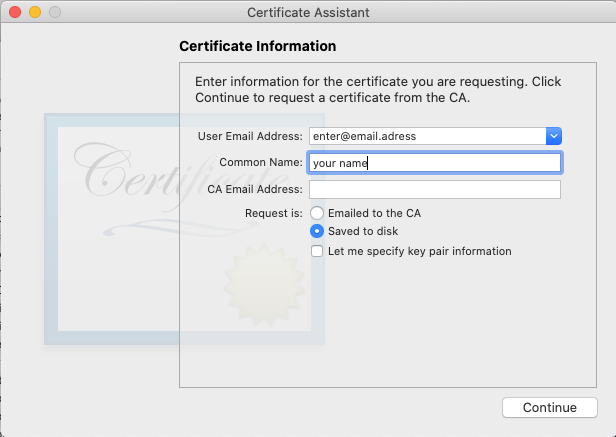
Now, you have a certificate signing request in the location that you specified. We will use it to generate a development certificate.
Step 2: Download development certificate
- Go to developer.apple.com → Certificates, Identifiers & Profiles → Identifiers → “your app” → Push Notification → Create Certificate → Choose File (choose the development certificate) → Download
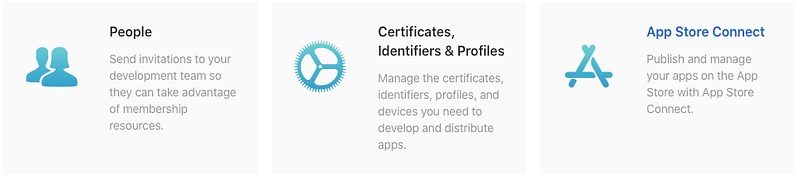
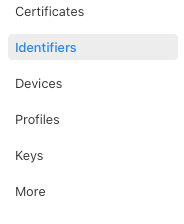
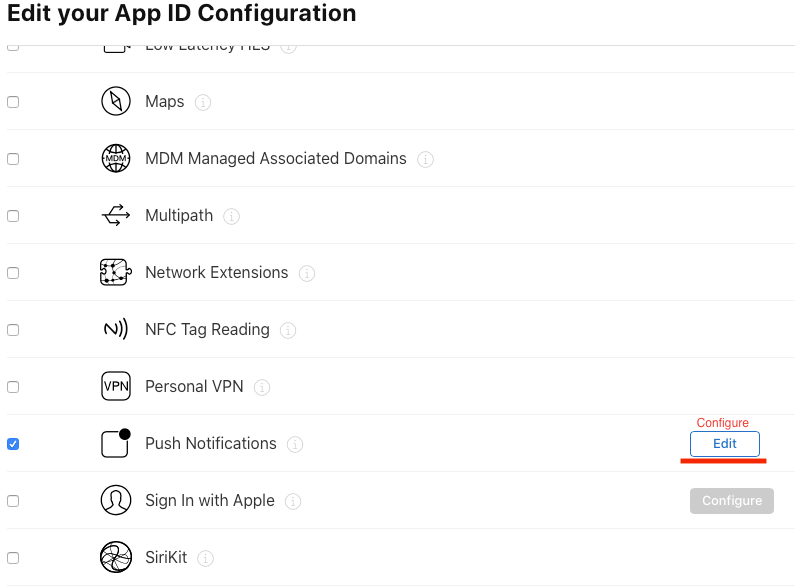
You can create a certificate for both development and production if you have a separate debug mode. Creating both sandbox and production certificates will save you from trouble in the future.
Step 3: export .p12 file
- Double click the certificate that you downloaded
- Then, go to “Keychain Access” → select “my certificates” → find the certificate → right click → “export” → “save”
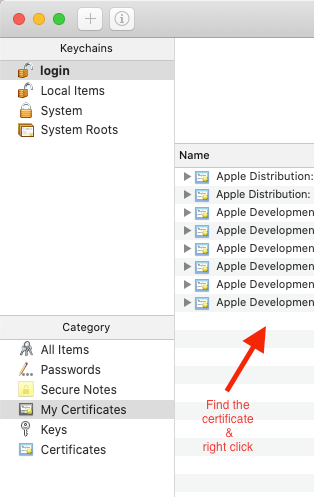
Now, you have a certificate (a .p12 file). We will upload this to Firebase so that we can send push notifications via Firebase.
Step 4: Upload certificate to Firebase
- Open Firebase, and go to Project Settings → Cloud Messaging → APNS Certificates → upload the certificate
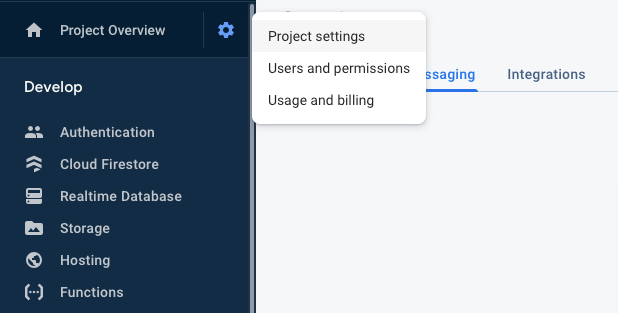

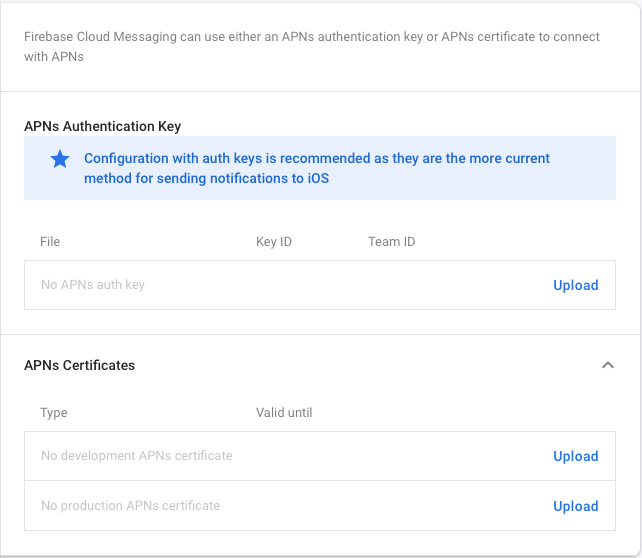
Now, we can send push notification via Firebase. Let’s integrate Firebase messaging into our app for sending push notification to a certain user.
Install Dependencies
Open your Podfile and add the required pod;
pod 'Firebase/Messaging'
Then, open terminal, add your project’s location, and then run
pod install
Note: You should register for remote notifications where it is suitable for your purpose.
https://firebase.google.com/docs/cloud-messaging/ios/client#register_for_remote_notifications
Get push notification token
Let’s get the push token. We need to use fcmToken (Firebase Cloud Messaging Token) to send push notifications via Firebase Cloud Messaging.
Open Xcode, and in AppDelegate file;
import FirebaseMessaging
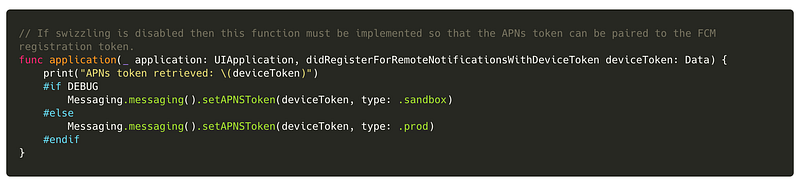
APNs token should be paired to “fcmToken”;
In Firebase Cloud Messaging, swizzling is open by default for pairing fcmToken. If you want to disable swizzling you can check this link.
In order to use apns token for other purposes (e.g. to be able to send push notifications also with another 3rd party service), we decided to disable swizzling. In that case, you should obtain deviceToken for pairing with fcmToken as below.
in AppDelegate;
in didFinishLaunchingWithOptions function;
Messaging.messaging().delegate = self
Then,
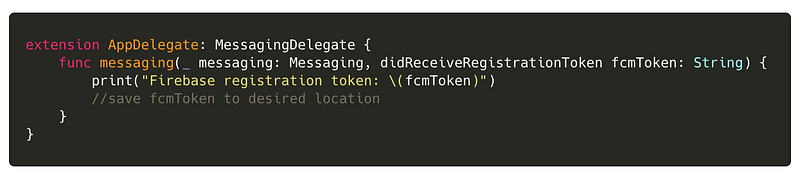
Now, we have fcmToken for a specific user. If we want to send a push notification to him/her, we will use this token.
Test Push Notification
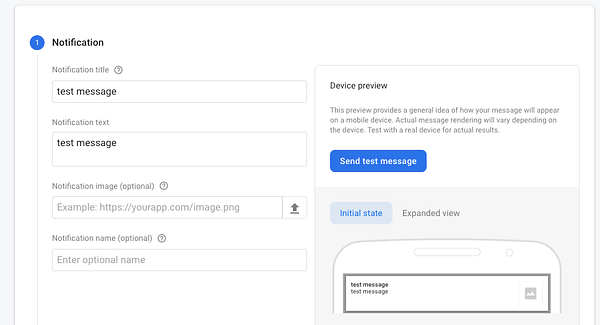
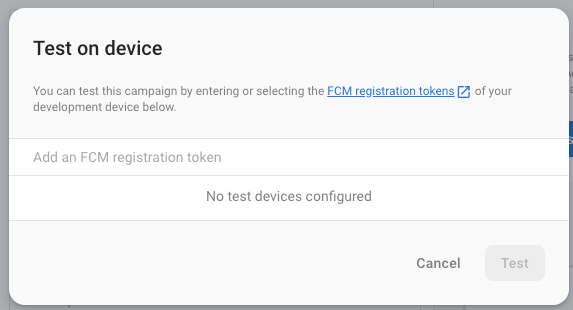
By using the fcmToken, we can send test push notifications to a certain device as shown below.
To learn more about our development experiences, you can have look at our medium page. At Plus Minus One, we love to learn and share our experiences. We hope this article makes your life easier 🙏🏻
| [Musa Kökçen — Turkey | Professional Profile | LinkedIn](https://www.linkedin.com/in/musakokcen/) |